Configuring Sound for Remote Desktop Server
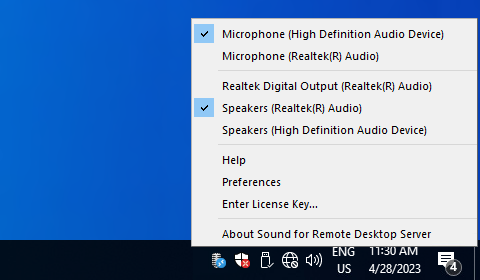
To change program settings, select Preferences in the tray menu.
General settings
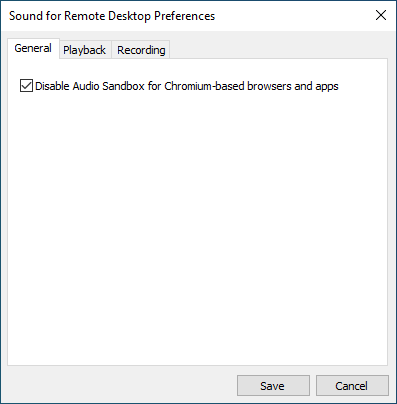
- Disable Audio Sandbox in Chromium-based browsers and apps
- Some browsers, like Google Chrome and Microsoft Edge, and some Electron-based applications (e.g., Microsoft Teams, Zoom, etc.) have the Audio Sandbox feature enabled, which breaks audio in remote sessions. This checkbox disables the Audio Sandbox for correct audio redirection.
- Audio device isolation mode
-
This setting allows you to adjust the isolation behavior for audio devices, providing different levels of isolation, compatibility, and functionality depending on your environment. Administrative rights are required to change the isolation mode.
- This setting is shared across multiple FabulaTech products, including USB for Remote Desktop, Sound for Remote Desktop, Webcam for Remote Desktop.
- By default, FabulaTech virtual audio devices redirected by Sound for Remote Desktop are isolated on a per-session basis (Strict isolation mode). This behavior affects the Windows native audio subsystem and effectively disables native Remote Desktop audio redirection.
- Important: Changes to this setting apply only to new user sessions. Users must sign out and sign in again for the new setting to take effect.
Strict
Provides the highest level of isolation. FabulaTech audio devices are fully isolated and accessible only by the user who owns them. This ensures complete audio separation and prevents cross-session access.
- Guarantees maximum isolation
- Prevents cross-session interaction
- Important: Native Remote Desktop audio redirection is not supported in this mode
- Recommended for multi-user environments requiring strict separationSession-isolated (compatible)
Provides session-based isolation with a compatibility layer. In most cases, audio devices remain isolated per session.
- Enables coexistence of FabulaTech and native Remote Desktop audio redirection
- Maintains isolation in most scenarios
- Recommended when native audio redirection must be used alongside FabulaTech
No isolation
Disables session isolation entirely. Audio devices are shared across all logged-on users.
- Recommended only for single-user environments
- If several users are logged in, all users can access the same audio devices
- May lead to conflicts in multi-user environments
Compression settings
The next two tabs contain similar compression settings for playback and recording.
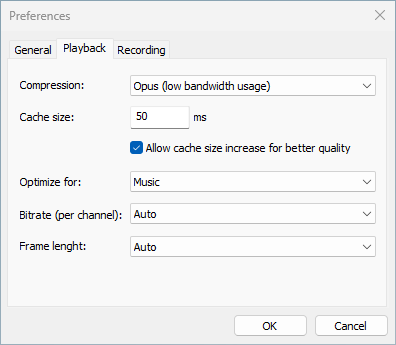
You can select either lossless PCM compression for the best quality (if you are not limited in bandwidth) or Opus compression for optimal performance on slow networks. Different compression options are available for these encoders.
- Cache size
- Increasing this value will eliminate choppy sound on unstable networks, but has a direct impact on sound delay.
- Allow cache size increase for better quality
- If this feature is enabled, the buffer size may be increased automatically, when it is insufficient for continuous audio playback. This may result in increased delay.
- Optimize for
- Choose the proper optimization algorithm according to your audio content.
- Bitrate
- A higher value means better quality but higher bandwidth usage.
- Frame length
- The default 20 ms frames are a good choice for most applications.